Getting started
1Overview
Meridian is a theme for journals running Open Journal Systems (OJS) 3.5. It replaces the default look with clear article pages, ORCID-aware author details, light and dark mode, a journal facts strip, indexing logos and a designed footer.
It is a child of the default OJS theme: it keeps OJS's standard markup, menus, hooks and plugins working, and everything is set up from the OJS administration pages. You need no file access and no change to the server configuration.
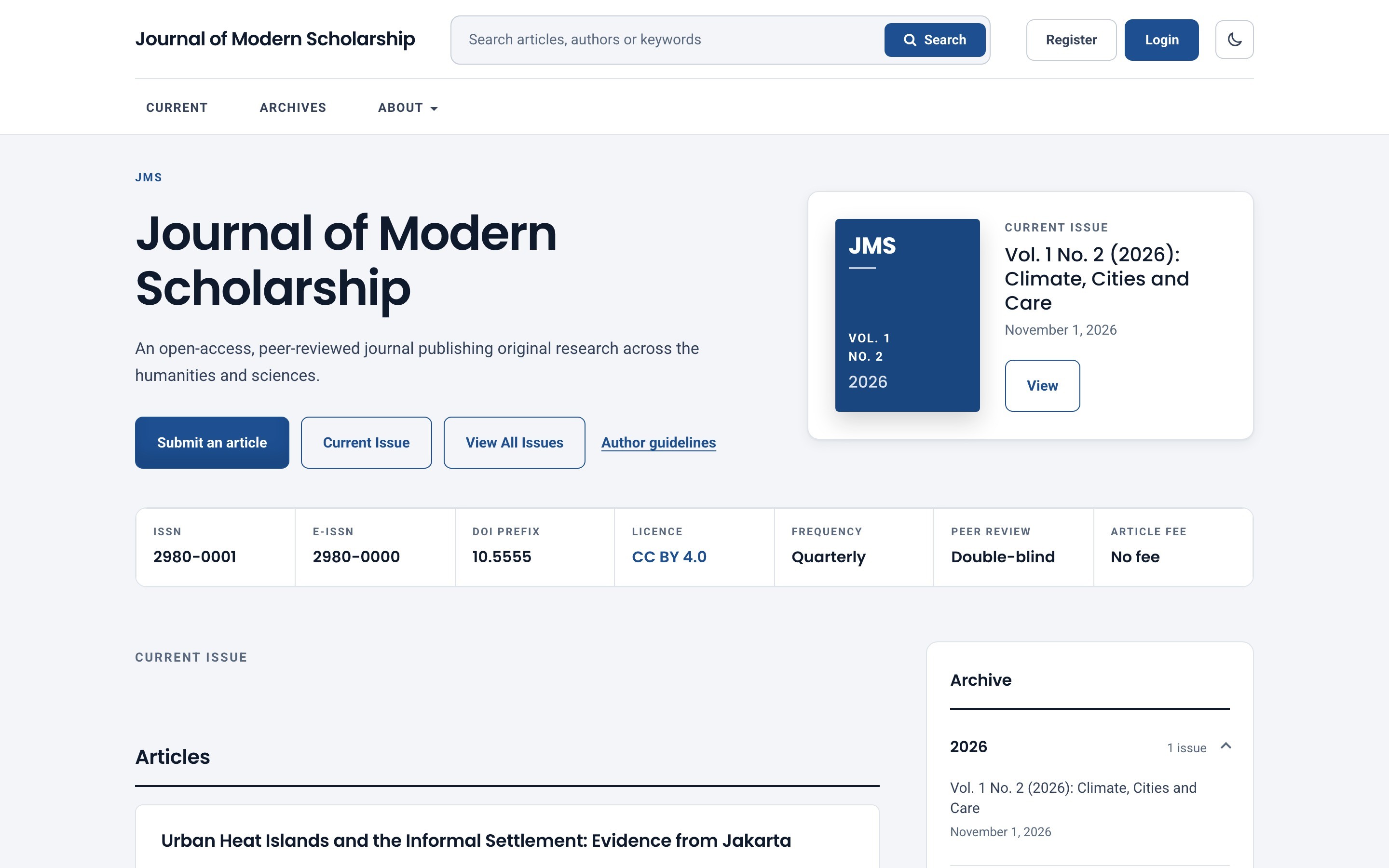
What this guide covers:
- How to install and activate Meridian, and how to update or remove it.
- Every setting, with its choices and default.
- Where each piece of information on the site comes from in OJS, so you know what to fill in.
- How the pages work, and how to keep the journal accessible while you make it your own.
Getting started
2Requirements and installation
Before you start
- Open Journal Systems 3.5.x, on a PHP version supported by OJS 3.5.
- The default OJS theme must stay installed. It ships with OJS, and Meridian builds on it.
- An OJS account that is allowed to upload plugins (a site administrator or journal manager, depending on your setup).
- A recent backup of your OJS files and database, as with any change to a live site.
Installing
Download the file
The purchase email contains a link tomeridian-1.1.0.0.tar.gz. Do not unpack it.Upload it to OJS
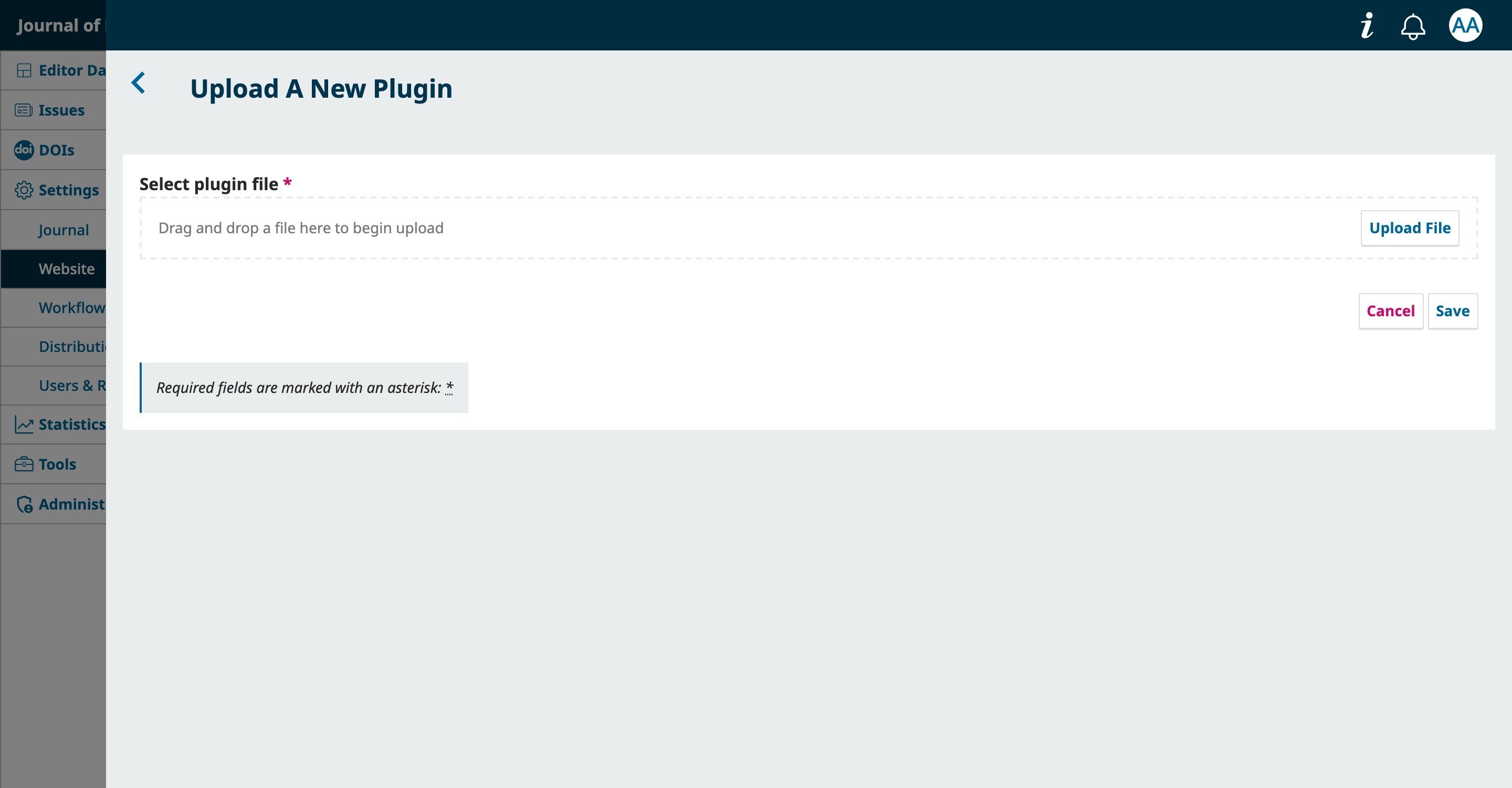
Open Settings → Website → Plugins and click Upload A New Plugin. Choose the file and click Save. OJS shows “Successfully installed”.Choose the theme
Open Settings → Website → Appearance → Theme, select Meridian in the theme list and save.Open the settings
Meridian's settings appear below the theme selector. Set them up as described in the next sections.
Updating
When a new version is released, download it and upload it the same way as the first install; OJS upgrades the plugin in place. Back up first, and check your theme settings afterwards. If the pages look unchanged after an update, clear OJS's caches under Administration → Clear Template Cache and Clear Data Caches.
Switching the theme off, removing it
- Choosing another theme: the journal immediately uses that theme. Meridian's settings stay stored in OJS and are there again if you come back.
- Deleting the plugin: select another theme first. Settings stay in the database, and uploaded logos stay in the journal's public files folder.
Getting started
3The theme settings page
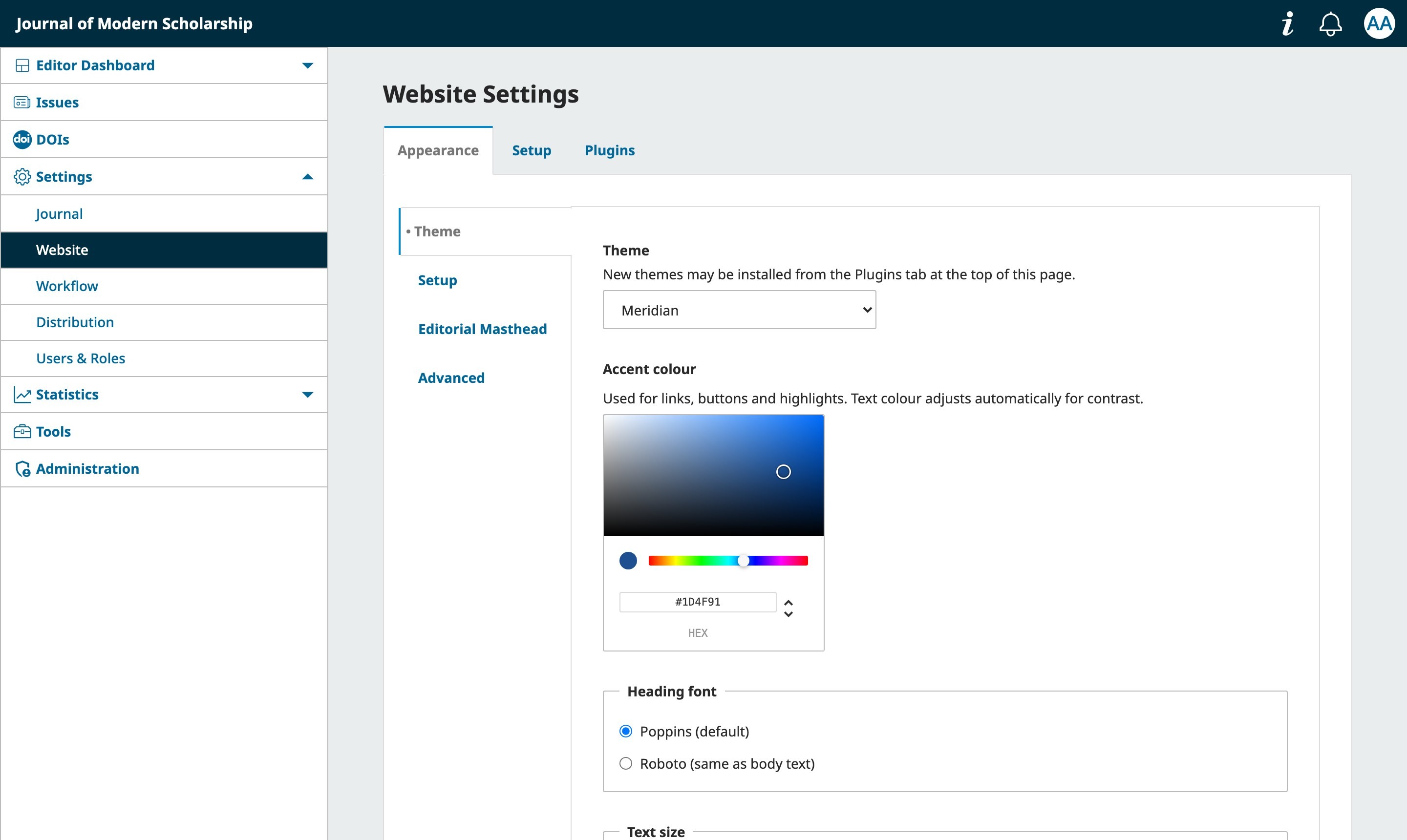
Open Settings → Website → Appearance → Theme. The form starts with the theme selector, followed by Meridian's own settings. Only options that Meridian actually uses are shown.
Meridian also reads information from other places in OJS, so a new site fills itself in as you complete your journal details:
| On the site | Comes from |
|---|---|
| Journal name, description | Settings → Journal → Masthead |
| Logo (replaces the text name) | Settings → Website → Appearance → Setup |
| ISSN, e-ISSN, publisher | Settings → Journal → Masthead |
| DOI prefix and article DOIs | Settings → Distribution → DOIs |
| Licence | Settings → Distribution → License |
| Footer text | Settings → Website → Appearance → Setup → Page footer |
| Menus | Settings → Website → Navigation Menus (areas Primary, User and Footer) |
| Sidebar blocks (for example Information) | Settings → Website → Appearance → Setup → Sidebar |
| Announcements link in the footer | Settings → Website → Setup → Announcements |
| Issue covers | Issues → Back Issues → the issue → Cover Image |
Settings, section by section
4Settings: Appearance
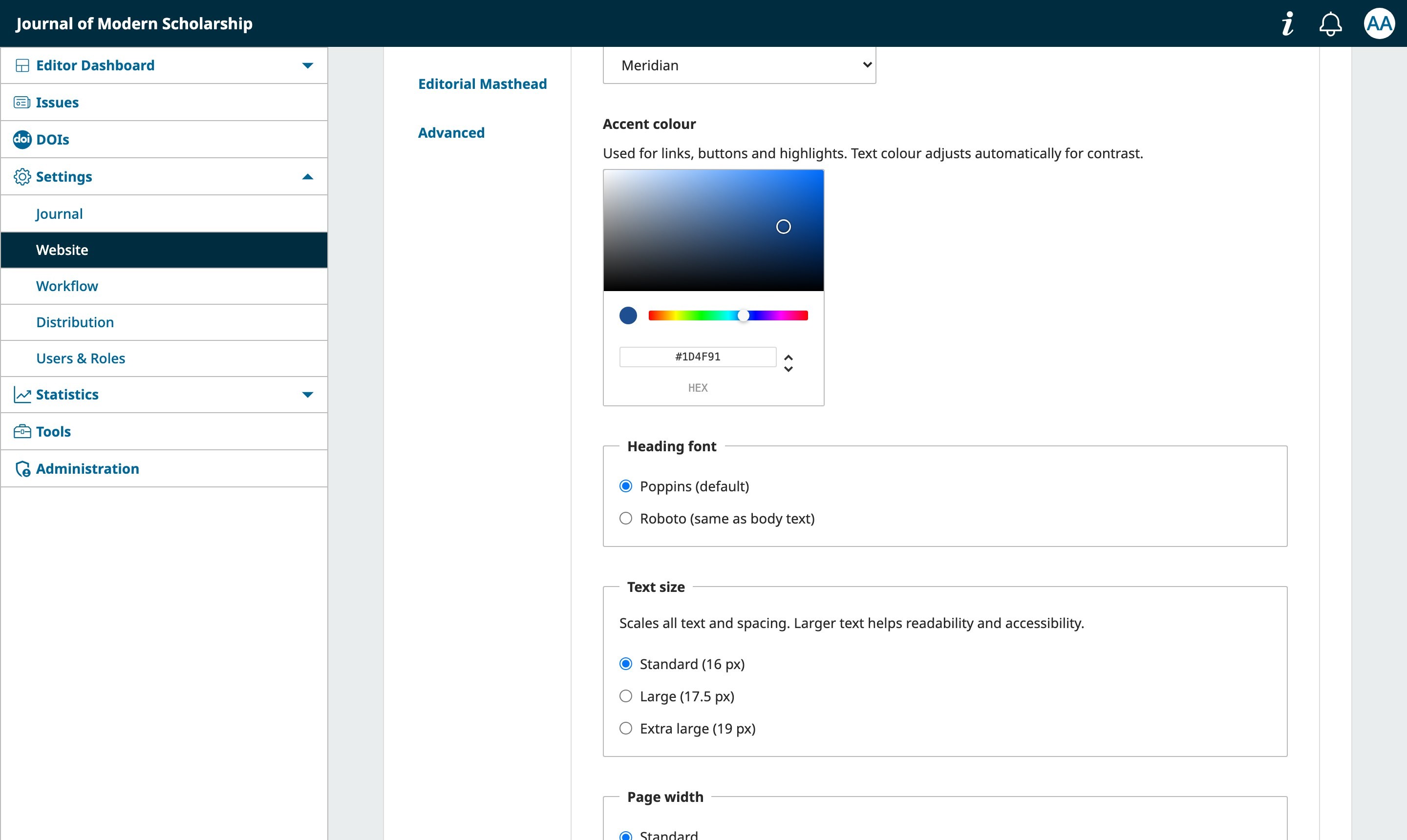
| Setting | What it does | Choices | Default |
|---|---|---|---|
| Accent colouraccentColour | Your primary colour: buttons, links, banners and issue covers. Button text and link colours are derived automatically so contrast stays readable in light and dark mode. | Any colour | #1d4f91 |
| Heading fontheadingFont | The font used for headings and the journal name. Both fonts are bundled with the theme. | Poppins, or Roboto (same as the body text) | Poppins |
| Text sizetextSize | Scales all text and spacing together. Larger text helps readability and accessibility. | Standard (16 px base), Large (17.5 px), Extra large (19 px) | Standard |
| Page widthpageWidth | The width of the content area. | Standard (1160 px) or Wide (1360 px) | Standard |
Settings, section by section
5Settings: Light and dark mode
| Setting | What it does | Choices | Default |
|---|---|---|---|
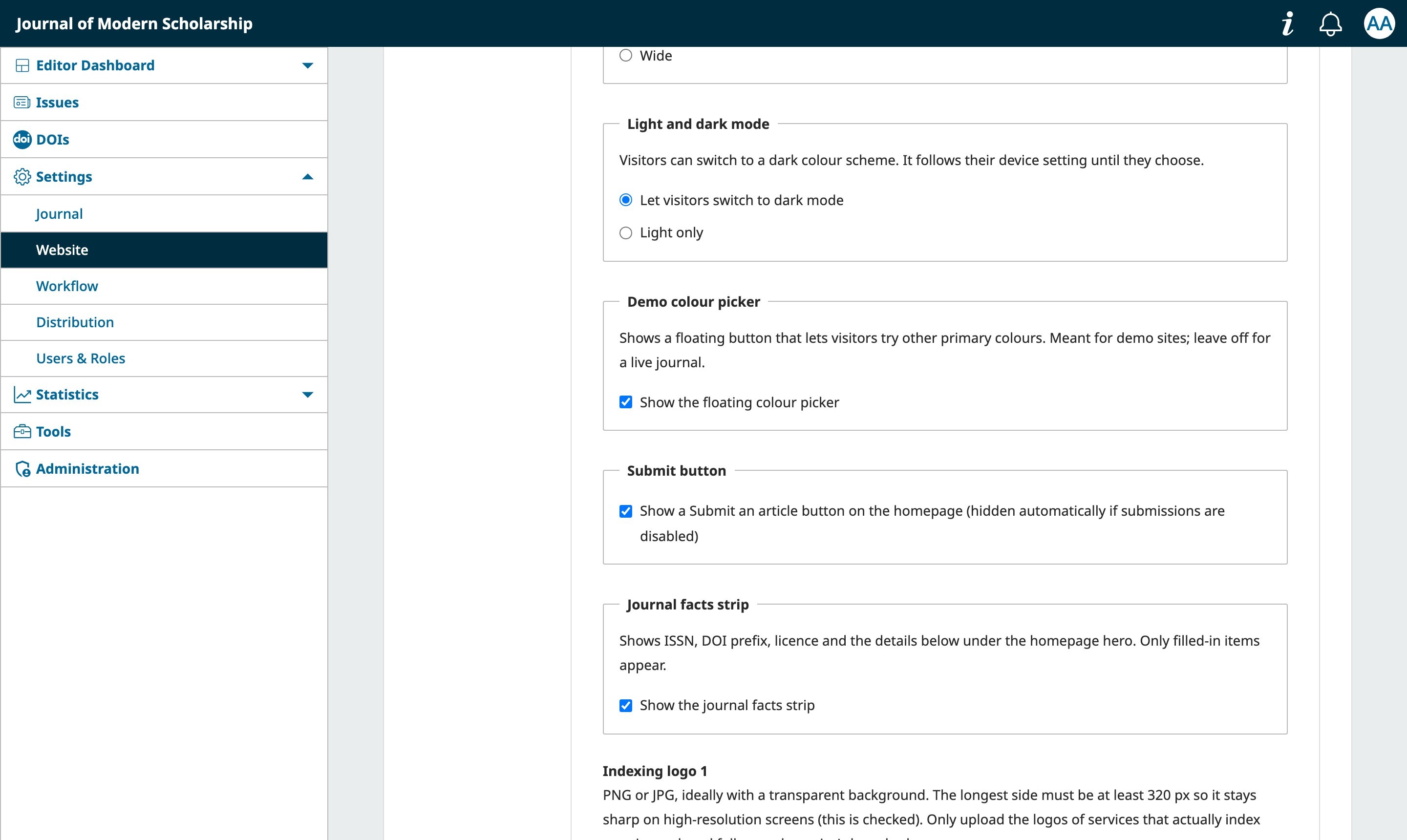
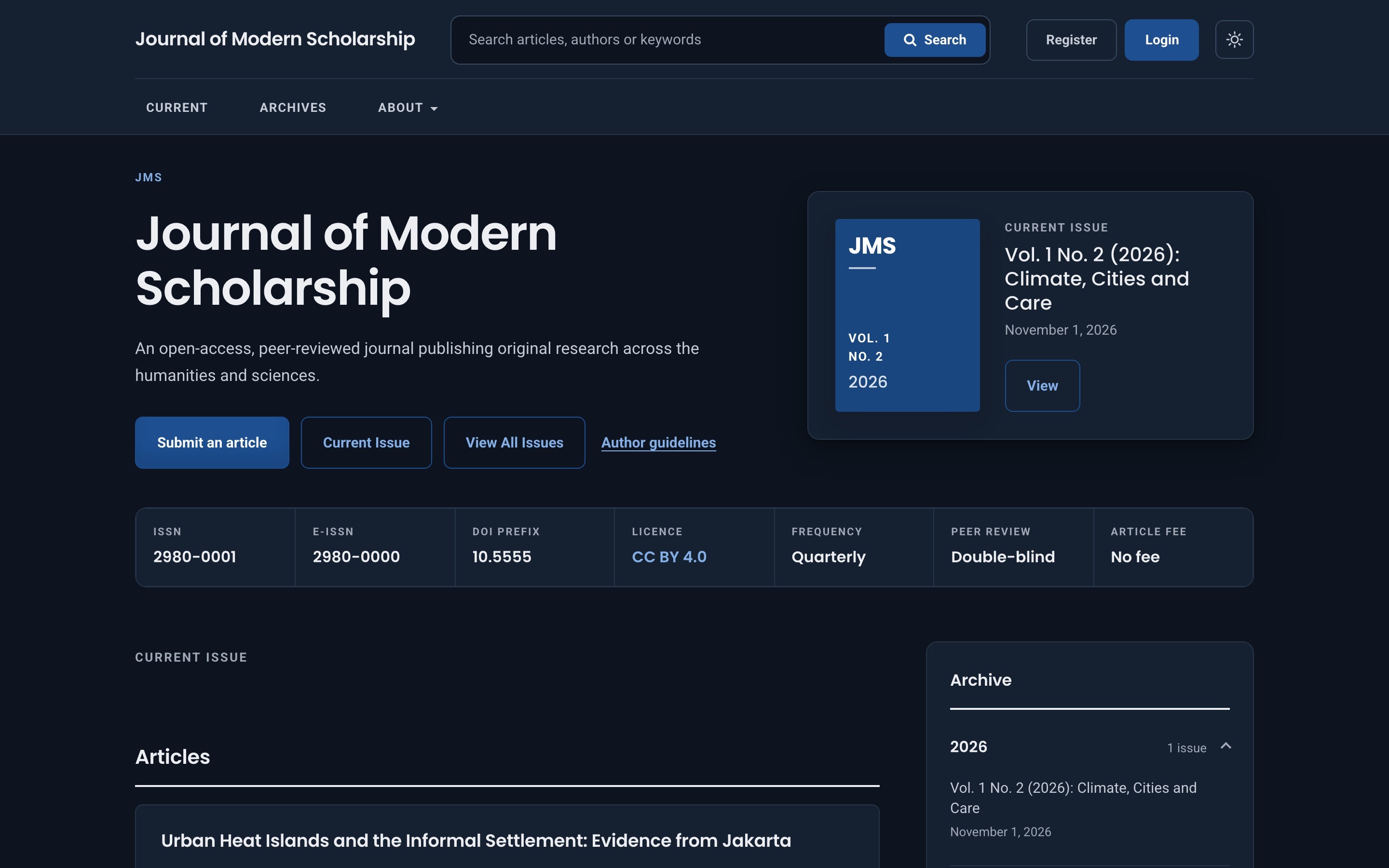
| Light and dark modecolourMode | Lets visitors switch to a dark colour scheme with a button in the header. The scheme follows the visitor's device setting until they choose, and their choice is remembered in their own browser. | Let visitors switch to dark mode, or Light only | Let visitors switch |
| Demo colour pickercolourPicker | Shows a floating button that lets visitors try other primary colours. Meant for demonstration sites only. | On or off | Off |
Settings, section by section
6Settings: Home page
| Setting | What it does | Choices | Default |
|---|---|---|---|
| Submit buttonshowSubmitButton | Shows a Submit an article button and an author-guidelines link in the homepage banner. It is hidden automatically when submissions are disabled in OJS. | On or off | On |
| Journal facts stripshowInfoStrip | Shows the strip under the homepage banner with ISSN, e-ISSN, DOI prefix, licence and the three fields below. Only items that have a value appear. | On or off | On |
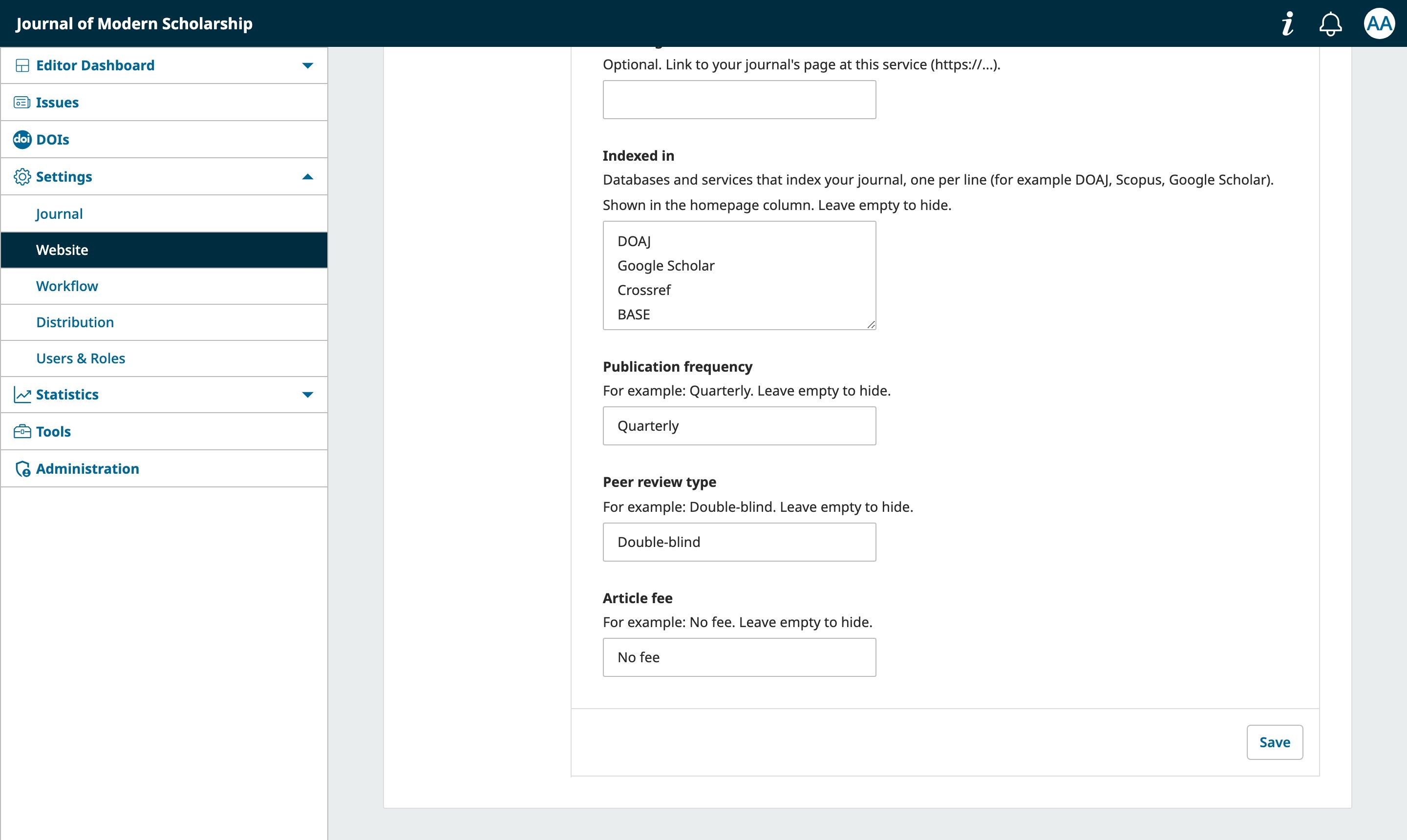
| Publication frequencyfrequency | Free text, for example Quarterly. | Any text | Empty (hidden) |
| Peer review typereviewType | Free text, for example Double-blind. | Any text | Empty (hidden) |
| Article feearticleFee | Free text, for example No fee. | Any text | Empty (hidden) |
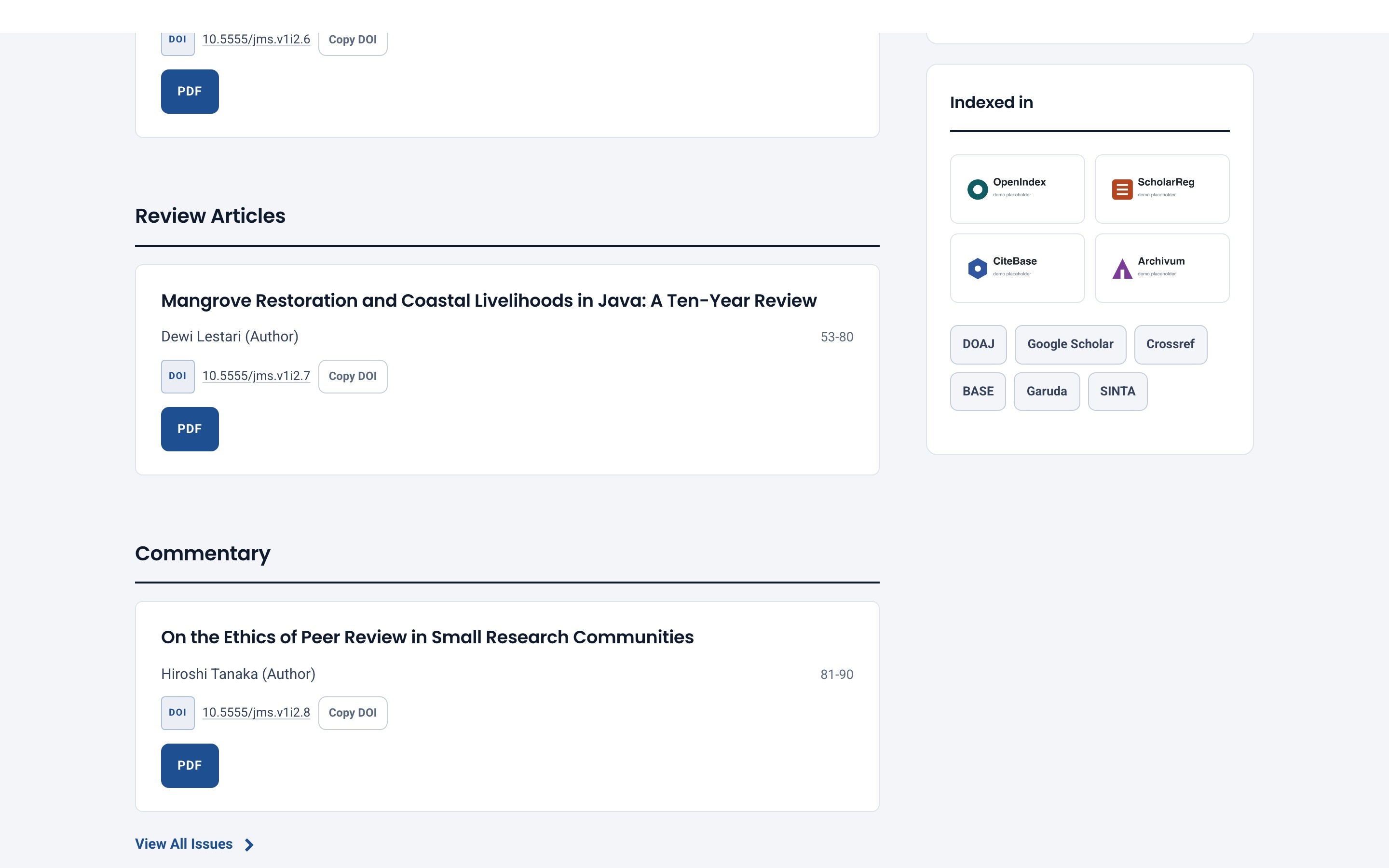
| Indexed inindexedIn | Services that index the journal, listed as text chips in the homepage column. Use this for services without a logo. | One name per line (up to 30) | Empty (hidden) |
ISSN, e-ISSN, DOI prefix and licence are not entered here: they come from your OJS settings (see section 3). Nothing is invented; anything you leave empty is simply not shown.
Settings, section by section
7Settings: Indexing logos
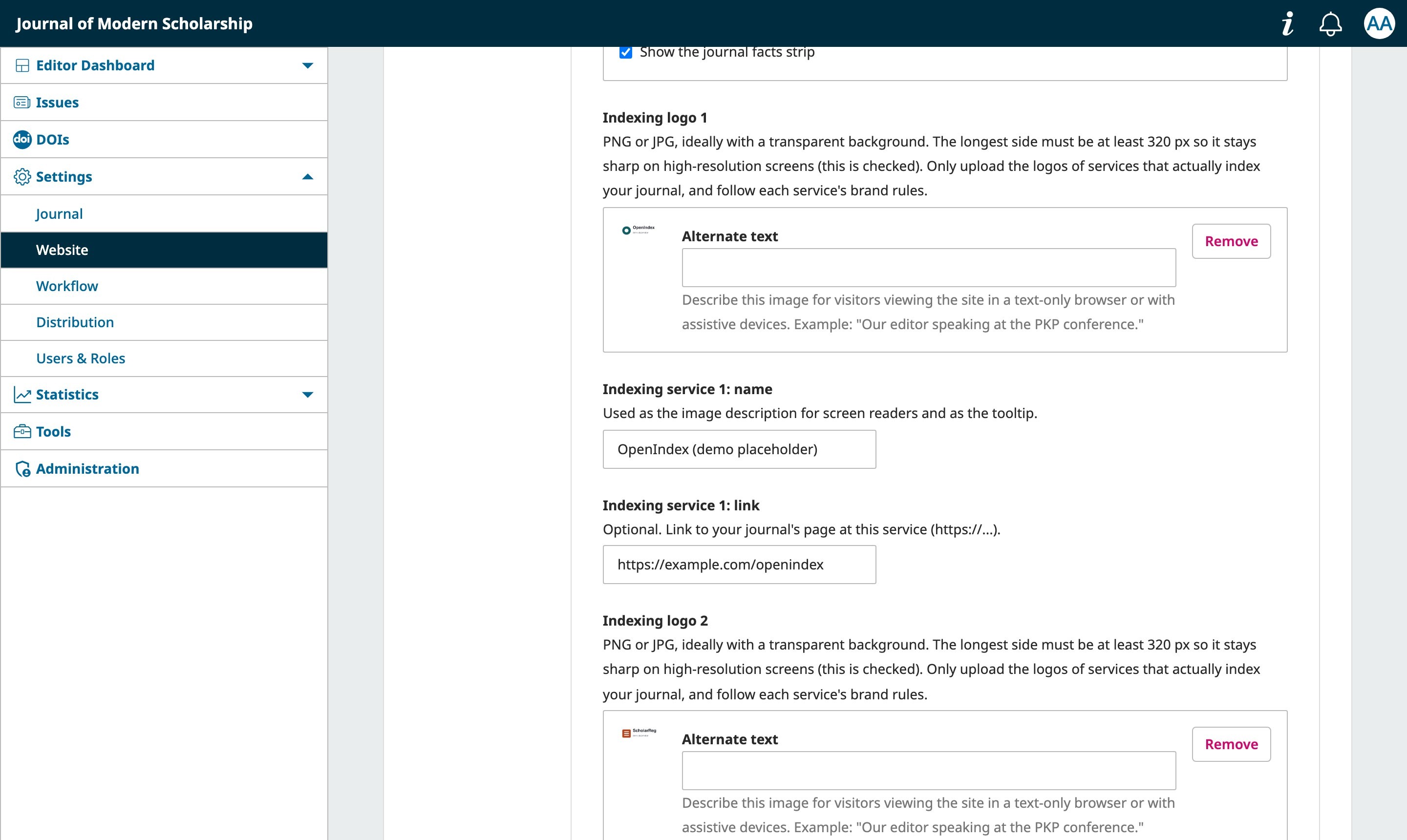
Show the services that index your journal in Indexing logo 1 to 8. Each slot has three fields.
| Setting | What it does | Choices | Default |
|---|---|---|---|
| Indexing logoindexLogo1 … indexLogo8 | The logo image. The longest side must be at least 320 px, which Meridian checks when you save. Larger is better; around 600 to 1000 px wide is ideal. Logos are shown small, so a big file stays sharp on high-resolution and phone screens. | PNG, JPG or GIF | Empty |
| Service nameindexName1 … indexName8 | Used as the image description for screen readers and as the tooltip. If you leave it empty, the image's own Alternate text is used. | Any text | Empty |
| Service linkindexUrl1 … indexUrl8 | Optional link to your journal's page at that service. Only http and https links are accepted. | A web address | Empty |
Logos are shown on white tiles so dark artwork stays readable in dark mode. Slots with no image are not shown; services without a logo can go in Indexed in (previous section).
Design
8Colour and contrast
You choose one colour. Meridian derives the rest so the text always stays readable:
- Button text is white or near-black, whichever contrasts better with your colour.
- Links and small coloured text use your colour darkened just enough to reach WCAG AA contrast (4.5:1) on a white page.
- Dark mode uses a lightened variant of your colour with higher contrast against the dark background.
This means a very light colour, such as yellow, still gives dark button text and readable links. You can pick any colour without checking contrast yourself.
Design
9Text and fonts
Headings use Poppins and body text uses Roboto. Both fonts are bundled inside the theme, so visitors' browsers never contact Google Fonts or any other server. Both are released under the SIL Open Font License 1.1, and the licence texts are in the theme's fonts folder.
The Text size setting scales text and spacing together. Layouts are checked at all three sizes, down to phone width.
Pages
10Header and menus
The header has the journal name or logo on the left, a search bar in the middle, and Register and Login on the right (or the signed-in user menu). The light and dark switch sits at the end. The main menu is on its own row below.
- Main menu: built in OJS under Settings → Website → Navigation Menus (Primary area), exactly as with any theme.
- Journal logo: a logo from Settings → Website → Appearance → Setup replaces the text name.
- On a phone the search bar moves under the journal name, and the menu and account links open from the menu button.
Pages
11Home page
- Banner: the journal name and description from your Masthead settings, buttons for the current issue, the archive and (optionally) submissions.
- Current issue card: shows the issue cover. If an issue has no cover image, Meridian draws a neutral placeholder with the journal acronym, volume, number and year. Upload a cover under Issues → Back Issues to replace it.
- Journal facts strip: see section 6.
- Articles: the current issue, grouped by section, with DOI and a copy button, authors, pages and download buttons.
- Information column: the archive grouped by year, quick links to standard pages, your indexing logos and text list, and any sidebar blocks you have enabled in OJS.
Pages
12Article page
The article page is built for reading and keeps every OJS hook, so plugins that add content continue to work.
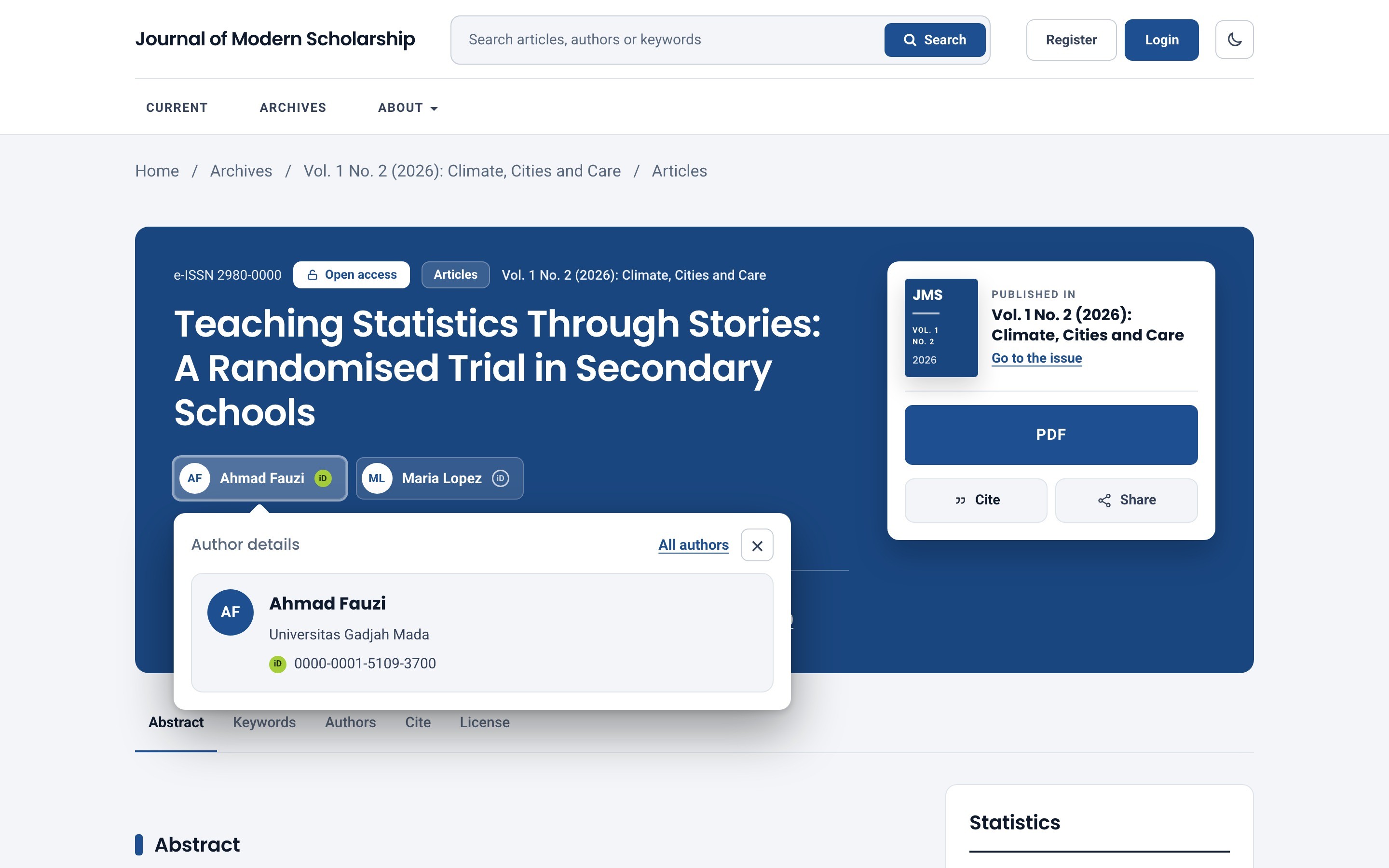
- Banner: e-ISSN, an open-access badge, section, issue, title, authors, and the key facts (DOI with a copy button, pages, publication date, licence).
- Author details: click an author to open an overlay with their affiliation and ORCID iD. The iD badge is green only when the author verified it through ORCID, and a muted ring when it was only typed in.
- Download card: the issue the article appeared in, the download buttons (PDF and other galleys), and Cite and Share actions.
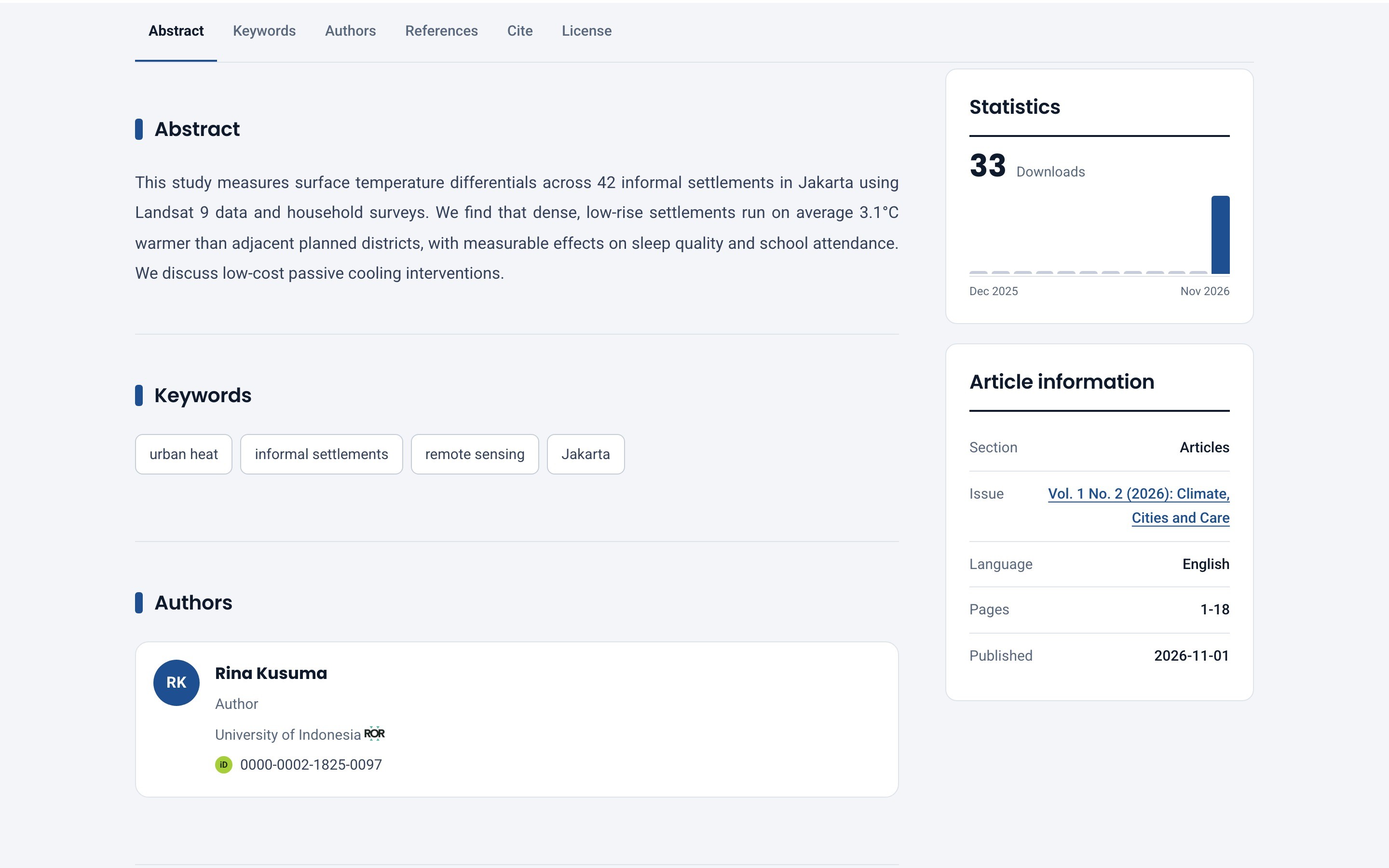
- Section menu: sticks to the top while reading and highlights where you are.
- References: numbered, with a count.
- Citation: if OJS's Citation Style Language plugin is enabled, Meridian shows its block. If not, it shows a suggested APA-style citation built from the article's metadata, with a Copy button.
- Licence: a card with the licence name and, where set, the copyright statement.
- Sidebar: download statistics (a 12-month chart) and article information. The chart needs OJS usage statistics to be enabled and covers months since publication.
Pages
13Issues, archive and search
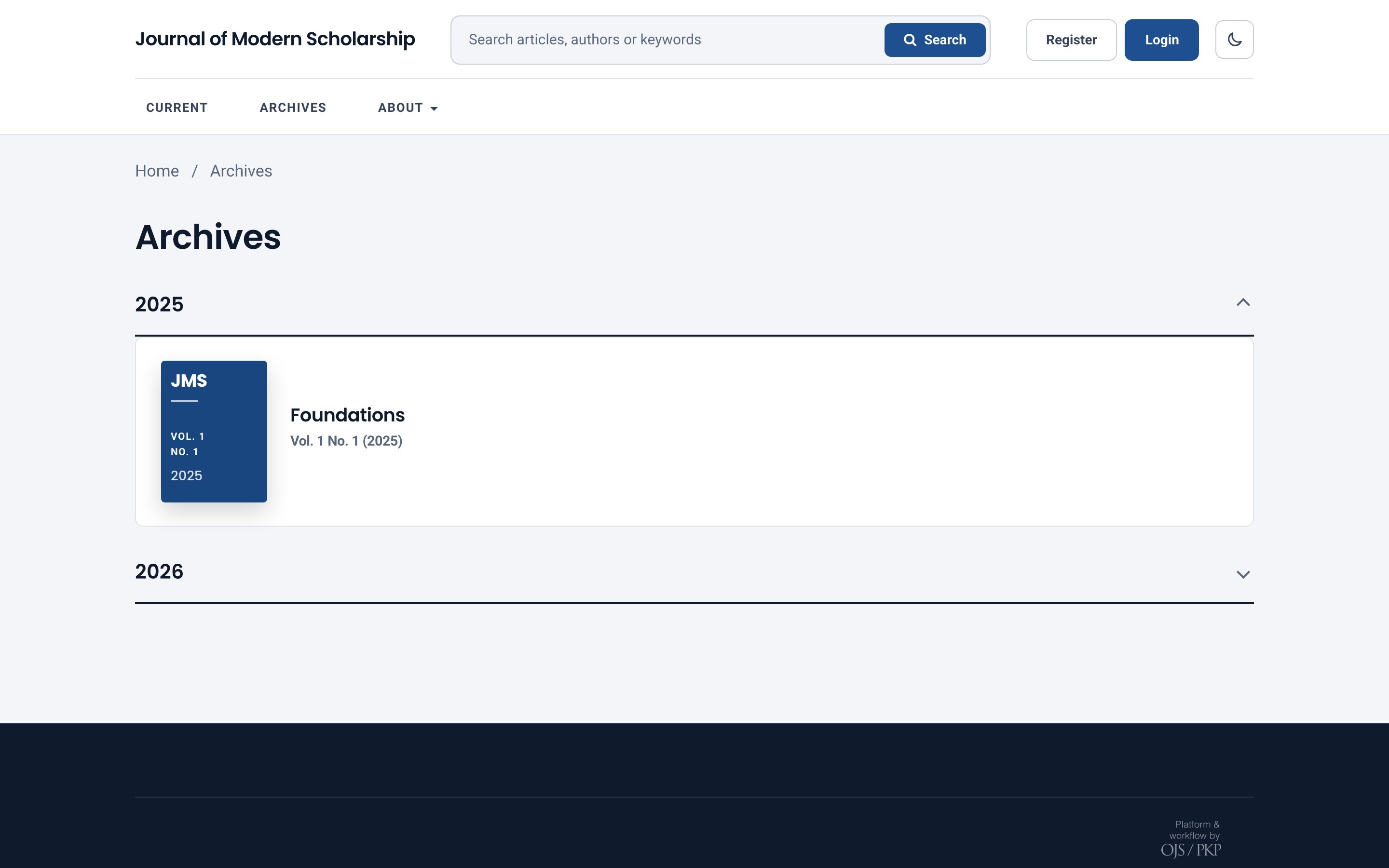
- Archive: issues are grouped into collapsible years, with the newest year open. Each issue shows its cover (or the placeholder).
- Search: the search bar in the header opens OJS's own search results, which Meridian restyles. If search returns nothing, see Troubleshooting.
- Announcements and static pages use the same typography and spacing as the rest of the theme.
Pages
14Login and registration
The login and registration pages share a banner and a card with Login / Register tabs, and a column with the journal summary and links to Submissions, Editorial team, Privacy and Contact.
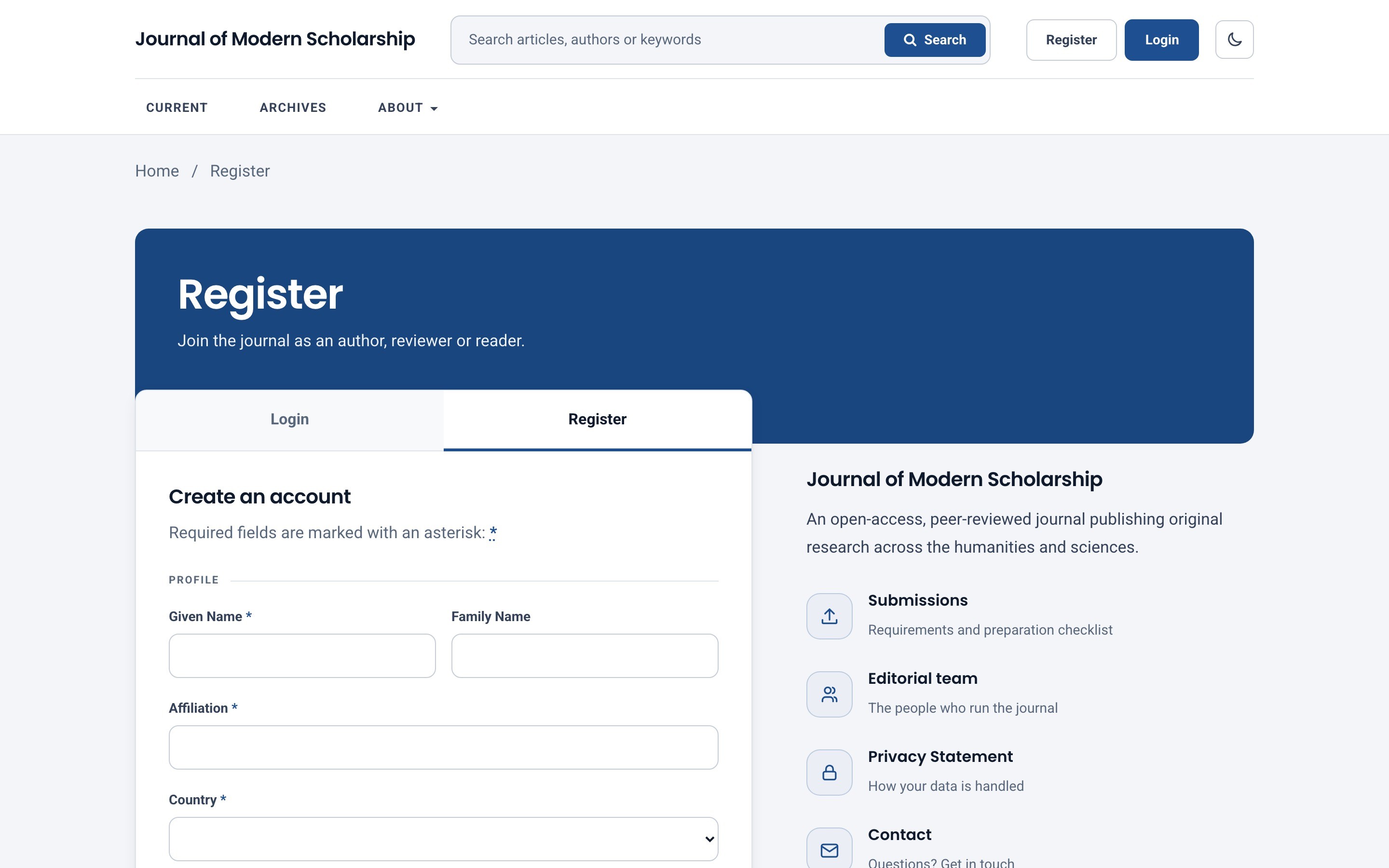
- The registration form is grouped into Profile, Login, and Consents and roles, with two-column rows.
- A password strength meter helps authors choose a better password.
- Every field, consent and plugin of the original OJS form (for example ORCID or reCAPTCHA) is unchanged; Meridian only changes how it looks.
Pages
15Footer
The footer builds itself from your OJS data, so it needs no setup.
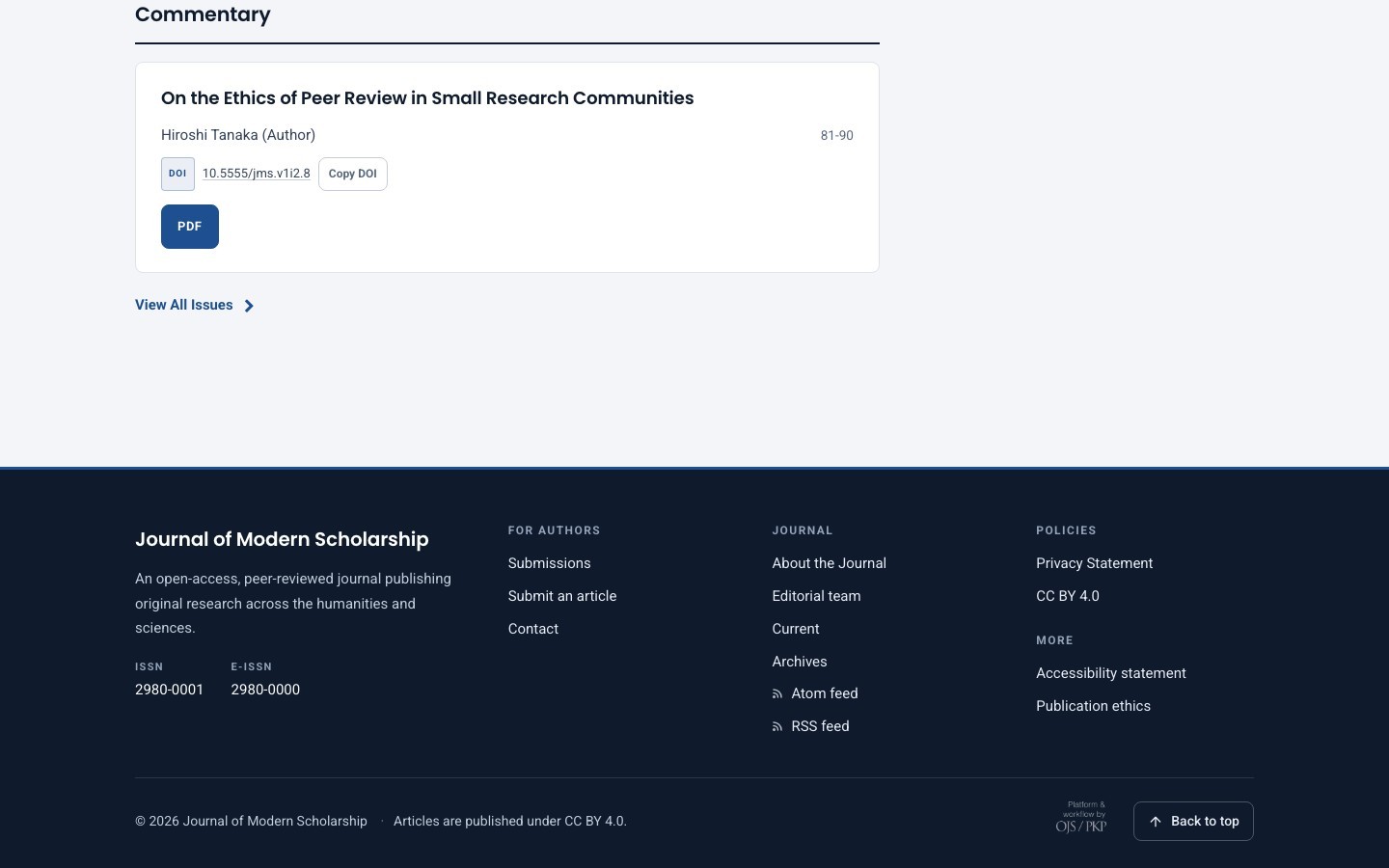
- Identity: journal name, short description, ISSN, e-ISSN and publisher.
- Columns: For authors, Journal and Policies, made from standard OJS pages. Announcements appear only if enabled.
- Your own links: create a menu under Settings → Website → Navigation Menus and assign it to the Footer area. Its links appear under a “More” heading.
- Page footer text: text from Appearance → Setup → Page footer is shown above the copyright line.
- Bottom bar: copyright, licence line, the OJS credit and a Back to top link.
Extras
16Feeds (Atom and RSS)
Feeds come from OJS's own Web Feed plugin. Enable it under Settings → Website → Plugins, and Meridian adds Atom feed and RSS feed links to the footer. Readers' feed apps also discover the feed automatically. If the plugin is off, no feed links are shown.
Extras
17Languages
Meridian's own text is included in English and Bahasa Indonesia. OJS provides the rest of the interface in many languages, and Meridian works with all of them.
To add a language, copy the theme's locale/en/locale.po to locale/<code>/locale.po and translate the text after each msgstr. Keep a backup, because a theme update replaces the folder.
Extras
18Accessibility
Meridian measures the contrast of every text colour on every page type in light and dark mode, keeps keyboard focus visible, respects the visitor's reduced-motion setting, and uses real buttons and links with labels.
Keeping it accessible when you customise
- Choose the accent colour in the settings rather than overriding it with custom CSS: the settings apply the contrast rules for you.
- Give every logo a service name, which becomes its image description.
- Prefer the larger text sizes if your readers are older or read on small screens.
- If you add your own CSS, check contrast again in both light and dark mode.
Extras
19Privacy
Fonts are bundled and Meridian makes no requests to third-party servers, so the theme adds nothing to your cookie or privacy notice. The theme itself sets no cookies; it stores the visitor's light or dark choice in their own browser only. OJS and your other plugins have their own behaviour, which the theme does not change.
Resources
20Troubleshooting
| What you see | What to check |
|---|---|
| Meridian is not in the theme list | Confirm the upload said "Successfully installed", and that you are in Settings → Website → Appearance → Theme of the journal (not site-wide settings). Upload the file as it is, not unpacked and re-compressed. |
| A setting change shows nothing | Clear OJS's caches: Administration → Clear Template Cache and Clear Data Caches. |
| A logo upload is rejected | The image is too small. Use at least 320 px on the longest side, as PNG or JPG. |
| No download chart on articles | Usage statistics must be enabled in OJS. The chart covers months since the article was published, so a new article shows few bars. |
| Search shows no results | This is an OJS indexing matter. Rebuild the search index with php tools/rebuildSearchIndex.php from the OJS root. |
| No feed links in the footer | Enable the Web Feed plugin under Settings → Website → Plugins. |
| Footer menu links do not appear | Assign the menu to the Footer area, then clear OJS's caches. |
Resources
21Support
Support is by email, from the people who build the theme. Please include your OJS version, your PHP version and a link to the page with the problem. If it also happens with the default OJS theme, tell us. See the support page for what is covered.